 Desktop Enhancements
Icon Tools
IcoFX 3 Business License Description
IcoFX 3 Business License

Author Company: IcoFX Software
IcoFX 3 Business License is an award winning professional icon and cursor editor. ... ...
File Size:
OS:
License: - Time Limit, free to try, to buy.
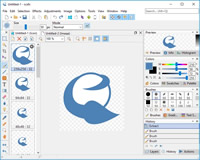
File Size:
OS:
License: - Time Limit, free to try, to buy.


IcoFX 3 Business License
The only tool you will need to edit icons and cursors!
icofx - The Professional Icon Editor
Icofx is a professional icon and cursor editor used to create icons with transparency for Windows and Macintosh
Icofx is an award winning professional icon and cursor editor for Windows. It is an all-in-one solution for icon creation, extraction and editing. It is designed to work with Windows and Macintosh icons supporting transparency.

Create icons for Windows and Macintosh. Support for Windows icons with resolution up to 1024x1024 with PNG compression. Convert your Macintosh icons to Windows icons and vice versa. Support for static and animated cursors. Create a favicon for your website or blog.

You can easily convert your favorite images into icons or cursors, or icons into images. Supported image formats SVG, BMP, PNG, JPG, JPG2000, TIF and GIF. You can extract icons from other files, including Windows Vista, Windows 7 and Macintosh files.

Icofx features a full blown image editor with many useful tools. You can use different brush sizes, shapes, hardness, even blending modes when painting. With more than 40 effects at your fingertips, there’s virtually no limit to the icons you can create.

Using pre-made image object icon creation has never been easier. You can combine the image objects in layer based images using icofx. It allows you to rearrange, blend layers and change their opacity.

You can easily work with multiple files using the batch processing capability of icofx (Business License). Create, convert, extract or export all your icons or cursors with just a few clicks.

Icofx gives you the possibility to create and edit icon and cursor libraries using the built in resource editor. Using the resource editor you can also change icons inside exe files.
Interface Icon, Cursor and Image Strip Creation Image Objects Tools Image Adjustments Effects Layers Batch Process (Business/Site license only) Resource Editor Colors Icon Customization Using IcoFX you can apply customizations to the folder icons of the Windows operating system.
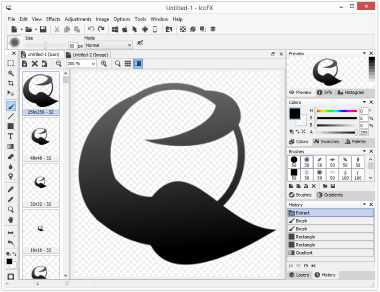
IcoFX has a panel based multilingual interface. You can fully customize the interface by rearranging, docking, un-docking, hiding, showing the panels. You can save your customization in workspaces. IcoFX comes with many predefined workspaces to make certain tasks easier. For example it has a predefined workspace for working with palette based images.
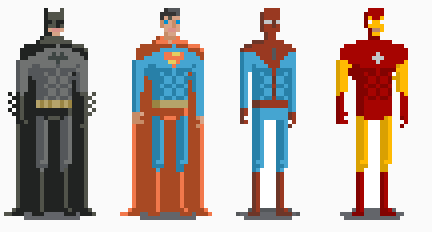
IcoFX was specially designed to work with small images like icons and cursors. It comes equipped with hard-edged and pixel-precise tools like the pen tool, zoom level up to 10000% and grid for easier orientation. It has all the tools you'll need to create your pixel art.
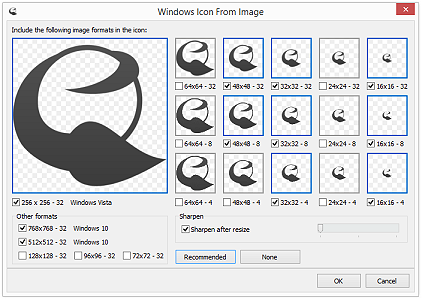
IcoFX has special windows to create all the needed image formats for your icon with a single click. It can create the needed image formats for Windows, Macintosh, Android and iOS/iPhone icons.
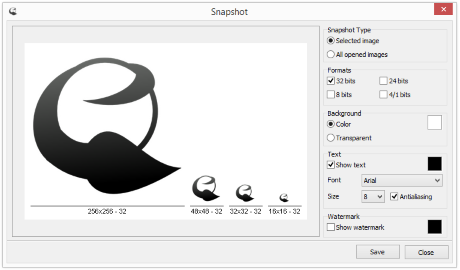
Using the Snapshot window you can create snapshot images from the currently opened icons to display them on your website or presentation. Optionally you can add a watermark to your image.
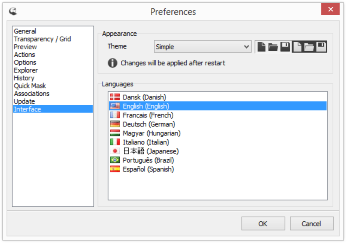
IcoFX has many options ranging from simple ones like the color of the background checker board, or the language of the user interface, to more advanced ones like the image re-sampling algorithm used.
IcoFX was specially designed to make working with icons and cursors easy. You can create icons from scratch, convert your favorite images to icons or extract icons from exe and dll files. Using IcoFX you can create or convert also Macintosh icons.

IcoFX makes working with toolbar image strips quick and easy. Just open it in IcoFX and you can edit the images individually. IcoFX takes care of the image cutting at load and the image gluing at saving so you can focus on editing the images.
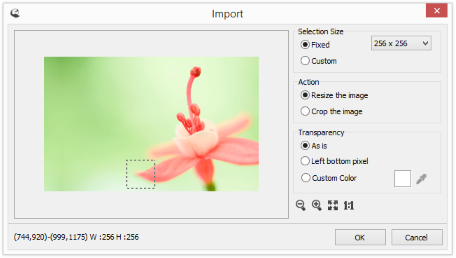
You can import your favorite images and create icons or cursors from them. IcoFX supports many image formats like svg, png, jpg, bmp, gif, apng, tiff, jpg2000 and xpm. You can also save your icons as images.
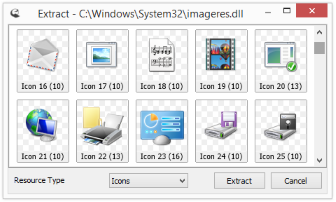
If you open a Windows or Macintosh binary file IcoFX will try to extract the icons and cursors from it. IcoFX can extract from EXE, DLL and OCX Windows binary files and Mac Binary, AppleSingle and AppleDouble Macintosh binary files.

Using IcoFX you can capture any part of your desktop.

IcoFX comes with a lot of pre-installed image objects. You can make icons simply by combining the image objects.
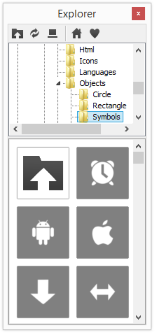
Using the integrated File Explorer you can view the graphical files supported by IcoFX. It allows you to easily work with image objects, by simply dragging them to your image to combine them.
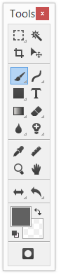
IcoFX makes more than 30 tools available to select, edit and retouch your images.
Selection tools: Rectangular, Elliptical, Lasso, Magic Wand, Move tool, Crop.
Painting Tools: Brush, Pencil, Gradient, Fill, Line, Curves, Text.
Shape tools: Rectangle, Ellipse, Rounded Rectangle, Custom Shape.
Retouching tools: Eraser, Color Eraser, Blur, Sharpen, Brighten, Darken.
Measuring and navigation tools: Color Picker, Hand, Zoom, Ruler.
Selection tools: Rectangular, Elliptical, Lasso, Magic Wand, Move tool, Crop.
Painting Tools: Brush, Pencil, Gradient, Fill, Line, Curves, Text.
Shape tools: Rectangle, Ellipse, Rounded Rectangle, Custom Shape.
Retouching tools: Eraser, Color Eraser, Blur, Sharpen, Brighten, Darken.
Measuring and navigation tools: Color Picker, Hand, Zoom, Ruler.
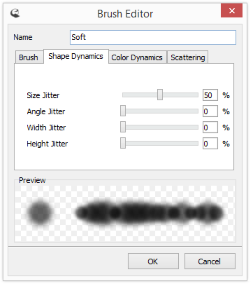
IcoFX comes preloaded with many brush types. Additionally you can create your own brush types with the Brush Editor.
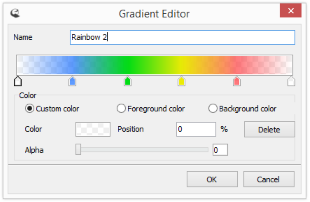
IcoFX comes preloaded with many predefined gradients. Additionally you can create your own gradients using the Gradient Editor.

Using the predefined text styles you can quickly create beautiful texts. You can also create custom test styles.

The Quick Mask mode allows you to make precise adjustments to your selection. Paint with any of the painting tools to make adjustments to selections. You can easily refine your selection by adjusting the smoothness of the selection border.
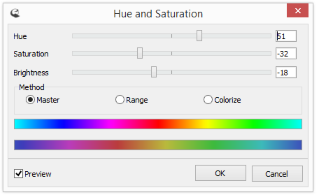
Using the Hue and Saturation feature you can set the hue and saturation or colorize an image.
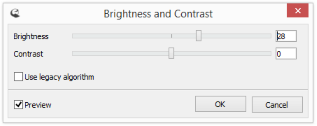
This color adjustment tool lets you make simple brightness and contrast adjustments to your image.
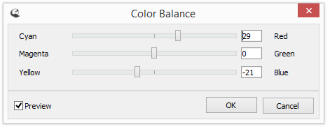
Use the Color Balance tool to fine tune the overall mixture of colors in an image.
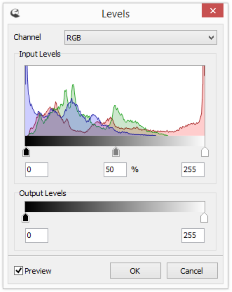
Using the Levels adjustment you can correct the tonal range and color balance of an image. You can adjust the intensity levels of image shadows, mid-tones, and highlights.
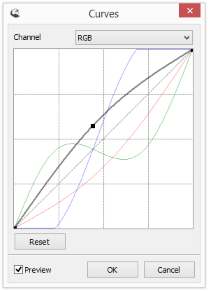
The Curves feature gives you full control over the tonal range of an image giving you access to the individual color channels.
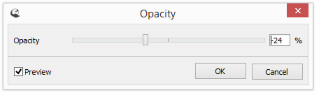
The Opacity feature gives you the possibility to increase or decrease the opacity of an image.
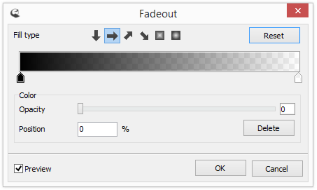
On this dialog you can fade out the image or selection. Similarly to the Opacity dialog this will also change the opacity of the image or selection, but you can configure an opacity gradient that will be used.
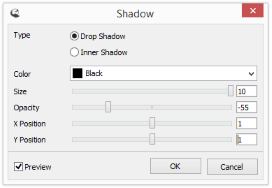
Using the shadow dialog you can add drop shadows or inner shadows to your image.
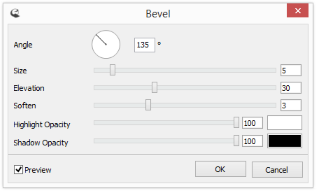
The bevel dialog adds various combinations of highlights and shadows to an image.
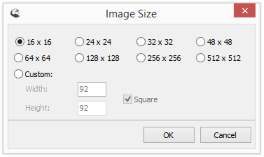
Using the resize tools of IcofX you can quickly resize, extend or trim your image or canvas.
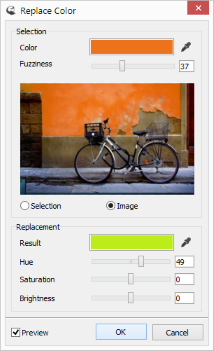
The Replace Color dialog is oriented to replace a range of colors while the Replace Pixels dialog gives you more control over what will be replaces and makes it easier to replace colors in pixel arts.

IcoFX comes preloaded with many effects that you can apply on your images, icons and cursors. Combine different effects for unique, near-effortless artistic creations.
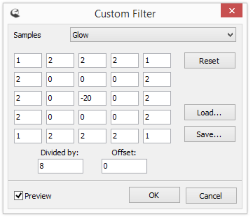
IcoFX even allows you to create your own custom effects using the Custom Filter dialog. The possibilities are endless.
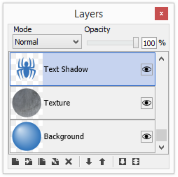
You can create non-destructive image compositions by using layers. IcoFX comes with a simple and intuitive Layers palette where you can quickly select, arrange, merge, change the blending and opacity of layers.

The blending mode specifies the way in which the pixels of a layer interact with the pixels of an underlying layer. IcoFX comes with 24 blending modes to enhance your icons.
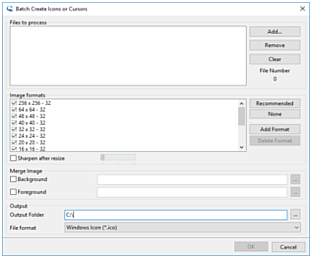
Using the "Batch Create Icons or Cursors" dialog you can create icons or cursors from images. It can also convert icons to icons. You can use this to convert Macintosh icons to Windows icons or vice versa. You can remove image formats from icons or add new ones.
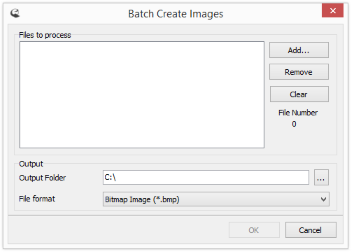
Using the Batch Create Images dialog you can convert your icons or cursors to images. Each image format inside the icon will be a separate image file.
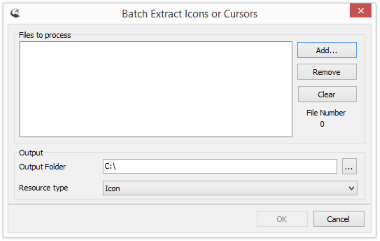
Using the Batch Extract Icons or Cursors dialog you can extract the icons or cursors from exe or dll files. Extract the standard icons from Windows dlls of from your favorite application's exe file. You can extract from all kind of Windows and Macintosh files. If it contains an icon it will be extracted.
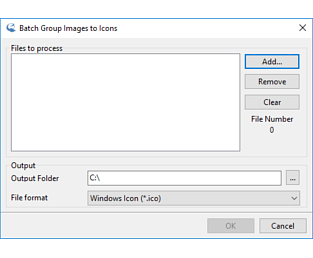
You can quickly combine images with similar names to Windows or Mac icons.
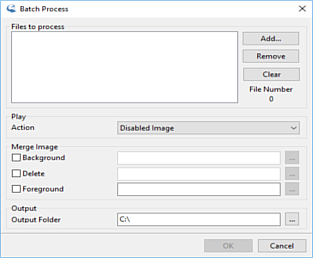
Using the Batch Process dialog you can apply effects and adjustments to images using predefined actions.
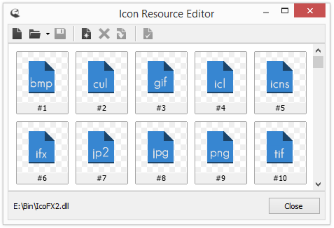
Using the Resource Editor dialogs you can create and edit icon or cursor libraries. If you have many icons and you'd like to group them together you can create an icon library. This way it is easier to handle and redistribute your icons.
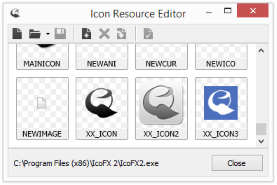
Using the Resource Editor dialogs you can add, remove or change icons or cursors in exe or dll files.
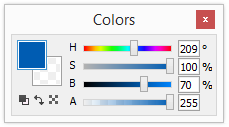
IcoFX supports three color modes for easier color selection: RGB, HSB and grayscale. You can select the desired color mode on the Colors. You can also select the transparency (alpha) of the color.
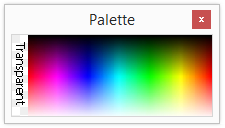
On the Palette panel you can easily select the desired foreground and background color. In the case of palette base images this panel will give you access to the palette of the image.
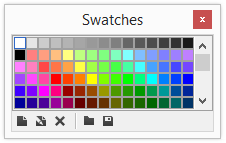
The Swatches panel is used for storing often-used colors. You can add or delete colors from the panel. IcoFX comes with already created swatches for your convenience.
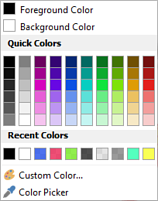
You have quick access to your recently used colors and some predefined quick colors. You also have a global color picker that can pick a color from your screen.
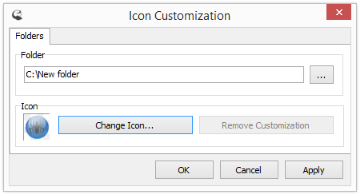
Using the Icon Customization window you can change the icon of folders or a drive or removable media. The customizations made using IcoFX are fully portable. This means that you can copy the customized folder to another computer and the customization will not be lost.
- Operating System : .
- Processor : Intel Pentium / AMD Athlon processor or equivalent running at 2 Ghz or more.
- RAM Memory : 512 MB RAM (1 GB RAM recommended).
- Storage : 50 MB free hard drive space (100 MB recommended).